
iCloud 2 TB full? What to do before you upgrade to 6 TB
A 2 TB iCloud+ plan can be shared with up to five other family members. When it's full, new photos and videos stop uploading to iCloud, files stop uploading to iCloud Drive, and devices stop backing up. The next plan is 6 TB, at three times the price.
Before you upgrade, find out what uses the space. Old backups, Messages, iCloud Drive and large videos all use the space that the family shares, and you can clear each of them.
What 6 TB costs
In the US, the 2 TB plan is $9.99 a month and the 6 TB plan is $29.99 a month. That's $20 more each month, or $240 more each year.
In the UK, the plans are £8.99 and £26.99 a month: £216 more each year. In Canada, CA$12.99 and CA$39.99: CA$324 more each year. In Australia, A$14.99 and A$44.99: A$360 more each year.
These are Apple's prices on 15 November 2026. In some US states, tax is added. UK and Australian prices include tax. Above 6 TB there is a 12 TB plan, at $59.99 a month in the US.
1. See what uses the space
Open Settings, tap your name, then tap iCloud. The bar at the top shows how much space you use. Tap Storage (on some versions, Manage Account Storage) to see each item with its size.
If you share the plan with your family, tap Family Usage on the same screen to see how much each member uses.
Each member has their own Apple Account, and their photos and files stay private. So you can't see or clear another member's items. Ask each member to open this screen on their own iPhone and look at their largest items. Then each member does the steps below for their own account.
If your family uses an iCloud Shared Photo Library, everything in it counts toward the iCloud storage of the person who set it up.
For most people, Photos is the largest item.
2. Delete the backups of old devices
iCloud keeps a backup of each iPhone and iPad that backs up to it. When a device stops backing up to iCloud, Apple keeps its backup for 180 days. In a family, each member can have backups of old devices.
On the Storage screen, tap Backups. If you see an iPhone or iPad that you no longer use, tap it, then tap Turn Off and Delete from iCloud and confirm.
Don't delete the backup of the iPhone you use now. That also turns off iCloud Backup for it.
Instead, tap the backup of your current iPhone. It lists each app with the size of its backup. Turn off the apps that you don't need backed up, such as an app that keeps its data in its own cloud.
3. Clear large attachments in Messages
With Messages in iCloud, the texts and attachments that you send and receive use your iCloud storage. The videos in your conversations can be large.
Open a conversation in Messages and tap the picture of the contact or group at the top. Tap Photos. To see only the videos, tap the Filter button, then tap Videos. Tap Edit, select the attachments you want to remove, then tap the Delete button and confirm.
Messages keeps what you delete in its own Recently Deleted for 30 days. To remove it now, go to the conversation list, tap the Filter button, then tap Recently Deleted. Select the conversations and delete them.
4. Clean up iCloud Drive
Open the Files app, tap Browse, then tap iCloud Drive under Locations. To find the largest files, tap the More button and sort by Size. Delete what you don't need. A file you delete here also goes from iCloud Drive on your other devices.
A folder that someone else shares with you doesn't count toward your iCloud storage.
Files keeps deleted files in its own Recently Deleted for 30 days. You find it under Locations in Browse.
5. Make your large videos smaller
A few minutes of video can take more space than thousands of photos. One minute of 4K video at 60 fps with HDR Video is about 440 MB, Apple says. One hour of it is about 26 GB. For the size of each camera setting, read How much storage does iPhone video take?
Optimize iPhone Storage won't help here. It keeps smaller versions of your photos and videos on your iPhone, and iCloud still keeps the full-size originals. To use less iCloud, the library itself has to get smaller.
Tiny Mighty finds the large videos in your library and makes a smaller copy of each one you choose. The copy keeps the date, the place and the albums of the original. You compare the two before you delete anything.
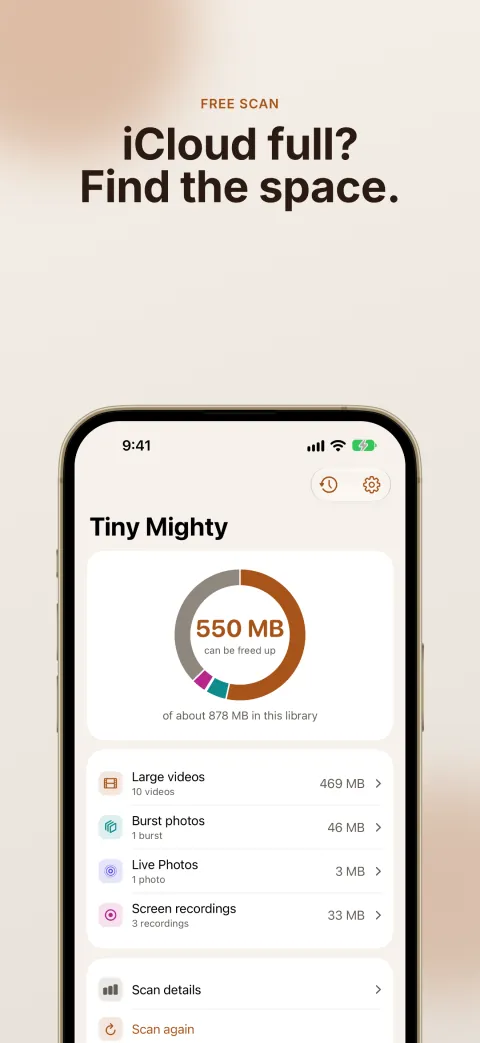
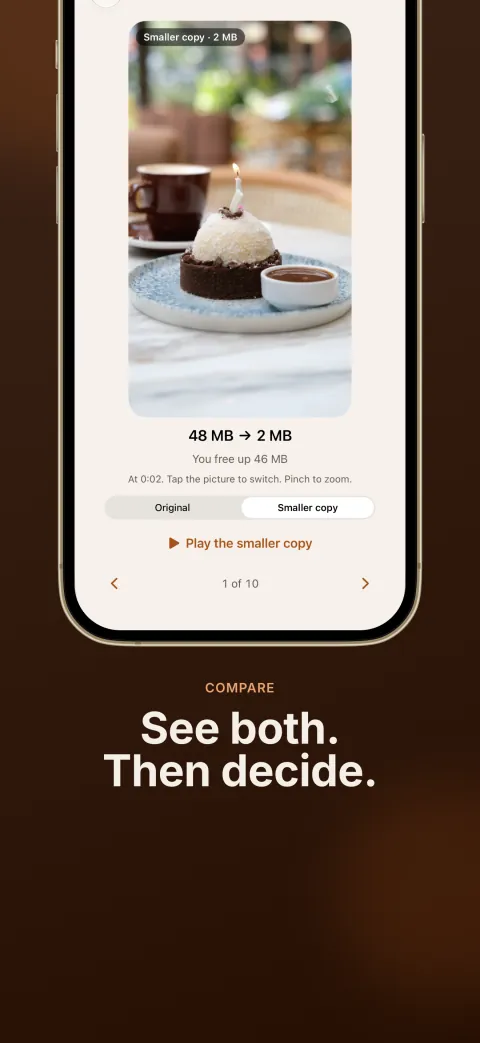
Most of the space it can give back is in videos recorded at a high setting, such as 4K. A video your camera records at the default setting is already small, so Tiny Mighty doesn't offer it.
Every copy is checked before its original is deleted: it must be smaller, as long as the original, and keep the sound and the color.
Your storage goes up before it goes down. Tiny Mighty makes each copy before anything is deleted. If your iCloud is full, a new copy is only on your device at first. iCloud saves it when it has room.
Tiny Mighty works with Family Sharing. One purchase covers your family. Each member installs Tiny Mighty and cleans their own library.
The scan is free, and it shows how much space your library can give back. Making large videos smaller needs a purchase. You do not pay for the scan, burst photos, screen recordings or your first run of 3 videos.
Get Tiny Mighty on the App Store
To free up iCloud and keep your photos, read How to free up iCloud storage without deleting photos.
6. Empty Recently Deleted
A photo or video you delete stays in Recently Deleted for 30 days, and you can get it back in that time. Apple says that items in Recently Deleted don't count toward your iCloud storage. If your iCloud is over its limit, iOS removes the photos and videos you delete at once, and Recently Deleted cannot bring them back. They can still take up space on your iPhone.
To remove them now, open Photos, tap Collections, then tap Recently Deleted under Utilities. Tap View Album and unlock it with Face ID, Touch ID or your passcode. Tap Select, choose the items, then delete them. You can't undo this, so look through the album first.
When to upgrade to 6 TB
If your family is still close to 2 TB after these steps, a larger plan is the simple answer. When the family is low on storage, every member gets a notification.
The family organizer, or the member who bought the plan, can upgrade it at any time. If that is you, open Settings, tap your name, tap iCloud, tap Storage, then tap Manage Plan. Another member can ask that person to upgrade.
Clear old backups and make your large videos smaller first. Then you may be able to stay on 2 TB.
For more ways to clear iCloud, read How to free up iCloud storage.
Prices and steps from Apple's support pages, read on 15 November 2026: iCloud+ plans and pricing, Manage your iCloud storage, Share iCloud+ with your family, Set up or join an iCloud Shared Photo Library and Subscribe to iCloud+.