
iPhone storage full? How to free up space
When your iPhone storage is full, you can't take new photos or install updates. Work through the steps below in order. Each one says what it removes and what it keeps.
1. See what uses the space
Open Settings → General → iPhone Storage. The bar at the top shows how much space each type of item uses. Below the bar, iOS shows its recommendations, then each app with its size. The largest app is at the top.
iOS takes a moment to work out the sizes. Wait until the bar fills in.
2. Offload the apps that you do not use
In iPhone Storage, tap an app, then tap Offload App. iOS removes the app but keeps its documents and data. When you install the app again, your data comes back.
To do this for every app you don't use, turn on Offload Unused Apps in the recommendations.
3. Remove large attachments from Messages
In iPhone Storage, tap Messages, then tap Review Large Attachments. Swipe left on an item to delete it.
To keep fewer old messages, open Settings → Apps → Messages → Keep Messages, and choose 1 Year. iOS then deletes the messages and the attachments that are older than one year.
4. Keep smaller photos on the iPhone with iCloud Photos
Open Settings → your name → iCloud → Photos, and choose Optimize iPhone Storage. iCloud keeps the full-size original of each photo and video. When the iPhone needs space, it keeps a smaller version on the device.
This needs room in iCloud for your whole library. If your iCloud is full too, step 5 helps with both. For more ways to clear iCloud, read How to free up iCloud storage.
5. Make your large videos smaller
In iPhone Storage, tap Photos to see how much space your library uses. Large videos fill your iCloud faster than anything else you keep.
Tiny Mighty finds space in three places: large videos, the extra photos of your bursts, and your screen recordings. The scan is free, and it shows how much space your library can give back.
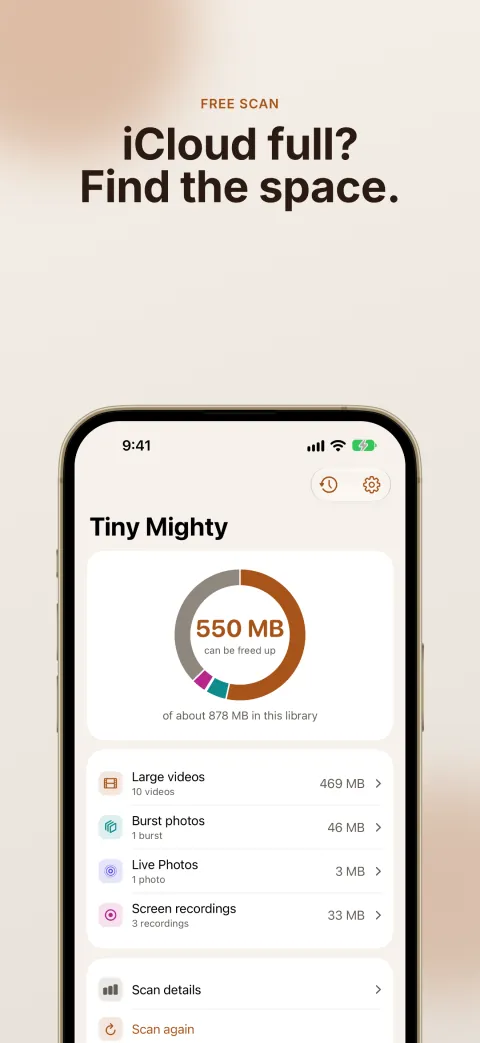
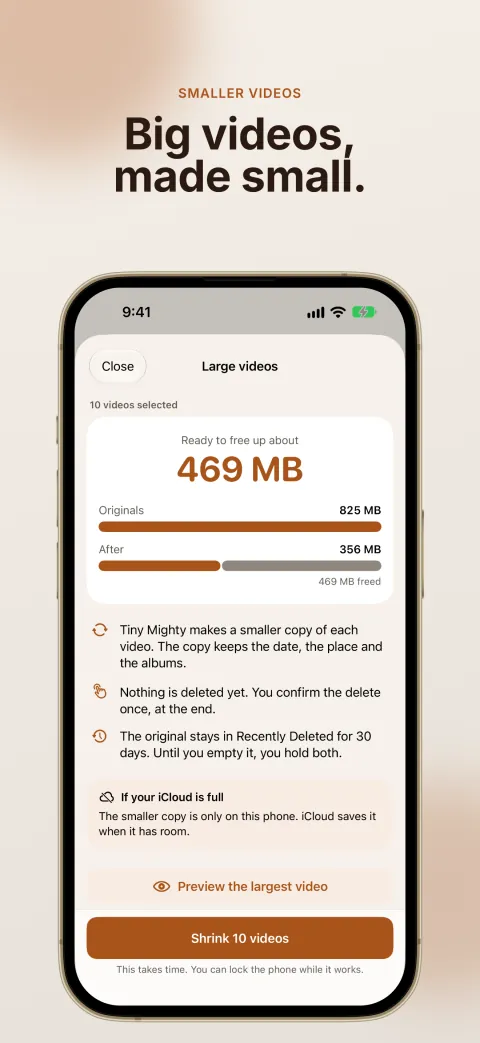
Tiny Mighty makes a smaller copy of each large video that you choose. The copy keeps the date, the place and the albums of the original. Before a run, tap Preview on a large video. Tiny Mighty shows the same moment from the original and from the smaller copy. The preview is free.
A run deletes no original, so your storage goes up first. To delete the originals, go to the home screen of Tiny Mighty and tap Delete. iOS asks you to confirm once, then it moves each original to Recently Deleted. Do step 6 after this.
Making large videos smaller needs a purchase. You do not pay for the scan, burst photos or screen recordings. Tiny Mighty keeps the best photo of each burst, plus your favorites and the photos you picked. Read more in Burst photos on iPhone.
Get Tiny Mighty on the App Store
For other ways to make a video smaller, read How to compress a video on iPhone.
6. Empty Recently Deleted
A photo or video you delete stays in Recently Deleted for 30 days, and it still uses your storage during that time.
To get the space back, open Photos → Collections → Utilities → Recently Deleted, then tap Select → Delete All. Delete All removes every item in that album. Look at the album before you empty it. iCloud can take a day to show the space.