
iCloud storage full? How to free up iCloud storage
The free iCloud plan has 5 GB, and your backups, photos, messages and files all share it. When it's full, your iPhone stops backing up and new photos stop syncing. Here's how to find what's taking the space and clear it, biggest wins first.
1. See what uses your iCloud
Open Settings → your name → iCloud. The bar at the top shows how your storage is split between Photos, Backups, Messages, iCloud Drive and the rest. Tap Manage Account Storage (on some versions, Manage Storage) to see each item with its size.
For most people, Photos is the largest item by far.
2. Delete the backups of old devices
In the storage list, tap Backups. If you see a phone or iPad that you no longer use, tap it and delete its backup.
Then tap the backup of your current iPhone. It lists each app with the size of its backup. Turn off the apps you don't need backed up, such as an app whose data is already in the cloud.
3. Make your large videos smaller
If Photos is the big one, look at your videos first. A few minutes of video can take more space than thousands of photos, and large videos fill your iCloud faster than anything else you keep.
Optimize iPhone Storage does not help here. It keeps a smaller version of each photo on your iPhone, but iCloud still keeps every full-size original. To use less iCloud, the library itself has to get smaller.
Tiny Mighty finds the large videos in your library and makes a smaller copy of each one you choose. The copy keeps the date, the place and the albums of the original. You compare the two before you delete anything.
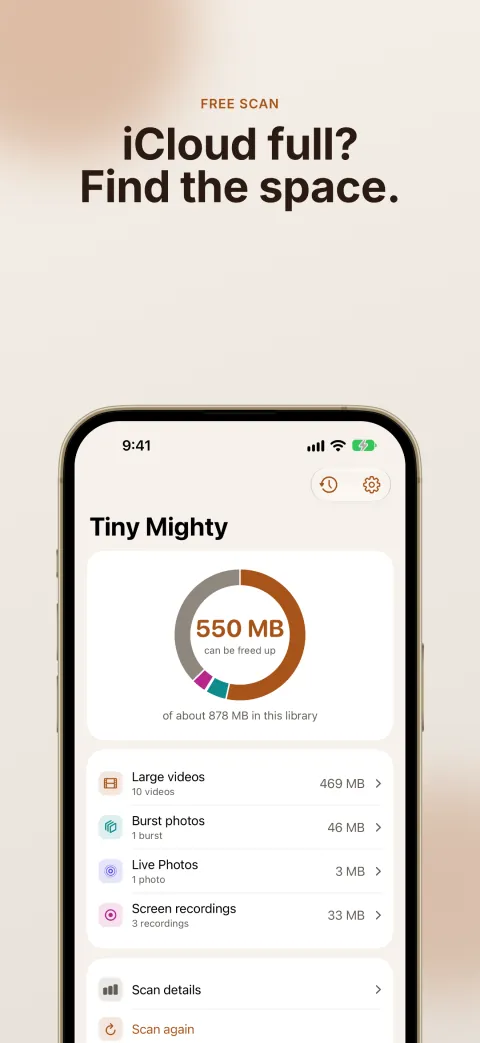
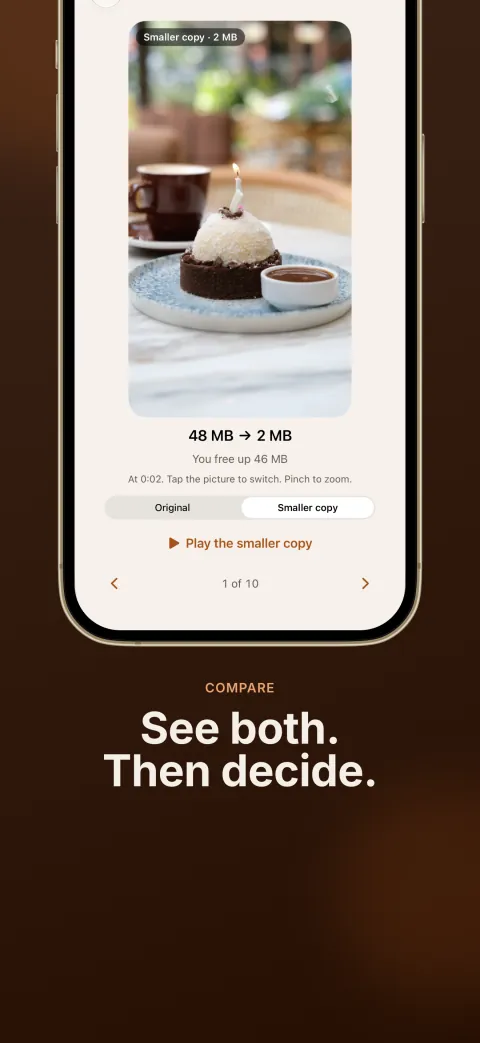
Your storage goes up before it goes down. Tiny Mighty makes each copy before anything is deleted. If your iCloud is full, a new copy is only on your device at first. iCloud saves it when it has room.
The scan is free, and it shows how much space your library can give back. Making large videos smaller needs a purchase. You do not pay for the scan, burst photos or screen recordings.
Get Tiny Mighty on the App Store
To see a before and after, read Reduce video size on iPhone.
4. Clear extra burst shots and old screen recordings
A burst saves many full-size photos when you wanted one. Screen recordings pile up too, and most are never watched again. Both count against your iCloud.
Tiny Mighty clears the extra shots of your bursts and your old screen recordings at no charge. It keeps the best photo of each burst, plus your favorites and the photos you picked. To do it by hand in Photos, read Burst photos on iPhone.
5. Empty Recently Deleted
This step is the one people miss. A photo or video you delete stays in Recently Deleted for 30 days, and it still counts against your iCloud during that time.
To get the space back, open Photos → Collections → Utilities → Recently Deleted, then tap Select → Delete All. Delete All removes every item in that album, so look through it first. iCloud can take a day to show the space.
6. Clear large attachments in Messages
If Messages is large in your storage list, open Settings → General → iPhone Storage → Messages, then tap Review Large Attachments. Swipe left on an item to delete it. With Messages in iCloud turned on, this frees iCloud space too.
7. Clean up iCloud Drive
Open the Files app, tap Browse, then iCloud Drive. Switch to the list view and sort by size to find the largest files. Delete what you don't need.
Files keeps deleted items in its own Recently Deleted for 30 days. Empty it to get the space back now.
When to buy more storage
If your library is still too big after these steps, a larger iCloud+ plan is the simple answer. Clearing large videos, bursts and old backups first often means you can stay on your current plan.