Burst photos on iPhone: keep the best, delete the rest
Burst mode takes a fast run of photos, so you can catch the one moment that counts. The catch is that every shot in the burst is a full-size photo, and they all stay in your library until you choose.
How to take a burst photo
In the Camera app, slide the shutter button to the left and hold it. The iPhone takes photos until you let go, and a counter shows how many.
You can also use the volume up button. Turn on Settings → Camera → Use Volume Up for Burst, then hold the button in the Camera app.
Why bursts take so much space
A burst of a few seconds can hold dozens of photos. In your library it looks like one photo, so it's easy to forget the rest are there. Each one still uses your iPhone storage and your iCloud.
Find your bursts
Open Photos → Collections → Media Types → Bursts. Every burst in your library is in that album.
Keep the best shot of a burst in Photos
1. Open a burst, then tap Select.
2. Swipe through the shots. Photos marks the ones it suggests with a dot.
3. Tap each shot you want to keep, then tap Done.
4. Tap Keep Only 1 Favorite to delete the rest. The number matches the shots you picked. To keep every shot as its own photo, tap Keep Everything instead.
The shots you didn't keep go to Recently Deleted. You do this one burst at a time.
Clear every burst at once with Tiny Mighty
Tiny Mighty finds the extra shots of all your bursts and clears them at no charge. It keeps the best photo of each burst, plus your favorites and the photos you picked.
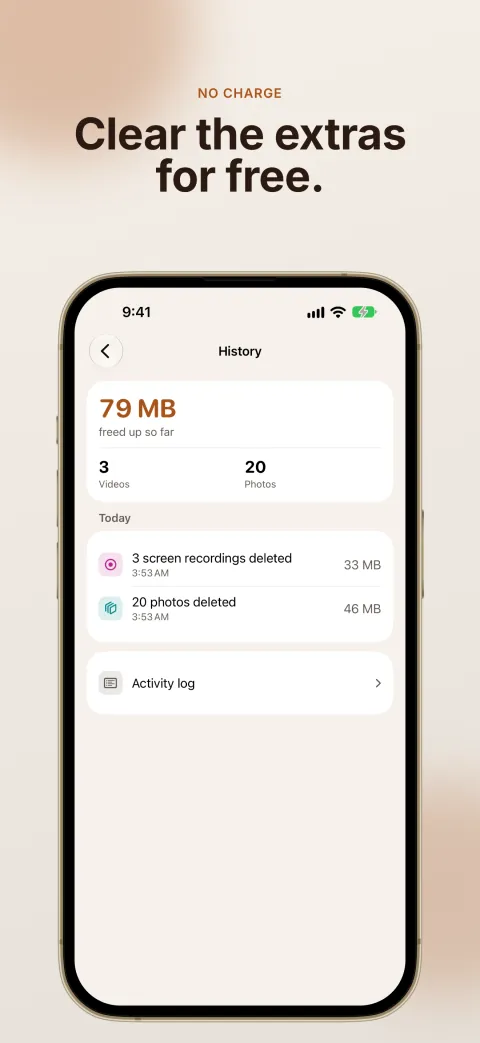
The same scan finds your old screen recordings and your large videos. The scan is free, and it shows how much space your library can give back.
Get Tiny Mighty on the App Store
Get the space back
Deleted burst shots stay in Recently Deleted for 30 days, and they still use your storage during that time.
To get the space back, open Photos → Collections → Utilities → Recently Deleted, then tap Select → Delete All. Delete All removes every item in that album, so look through it first. iCloud can take a day to show the space.
If your iPhone or iCloud is still full, read iPhone storage full? How to free up space or How to free up iCloud storage.