
How to compress a video on iPhone
The Photos app can't make a video smaller. Here are four other ways to do it, and what each one changes and keeps.
1. Record smaller videos from now on
Open Settings → Camera → Record Video, and choose a lower setting. Then open Settings → Camera → Formats, and choose High Efficiency.
This only affects videos you record from now on. The videos already in your library stay the same size.
2. Make a smaller copy with iMovie
iMovie is a free app from Apple.
1. Open iMovie and make a new movie.
2. Add the video, then tap Done.
3. Tap the share control, then tap Options, and choose a smaller size.
4. Tap Save Video.
iMovie saves a new video to Photos. The original stays in your library, so you get no space back until you delete it. You can only do one video at a time.
3. Make a smaller copy with Shortcuts
Shortcuts is a free app from Apple.
1. Make a new shortcut.
2. Add the action Select Photos, then the action Encode Media. In Encode Media, choose a smaller size.
3. Add the action Save to Photo Album.
4. Run the shortcut and select a video.
The shortcut saves a new video to Photos. The original stays in your library, so you get no space back until you delete it.
4. Make smaller copies of all your large videos with Tiny Mighty
Tiny Mighty finds the large videos in your photo library. It makes a smaller copy of each video you choose, and the copy keeps the date, the place and the albums of the original.
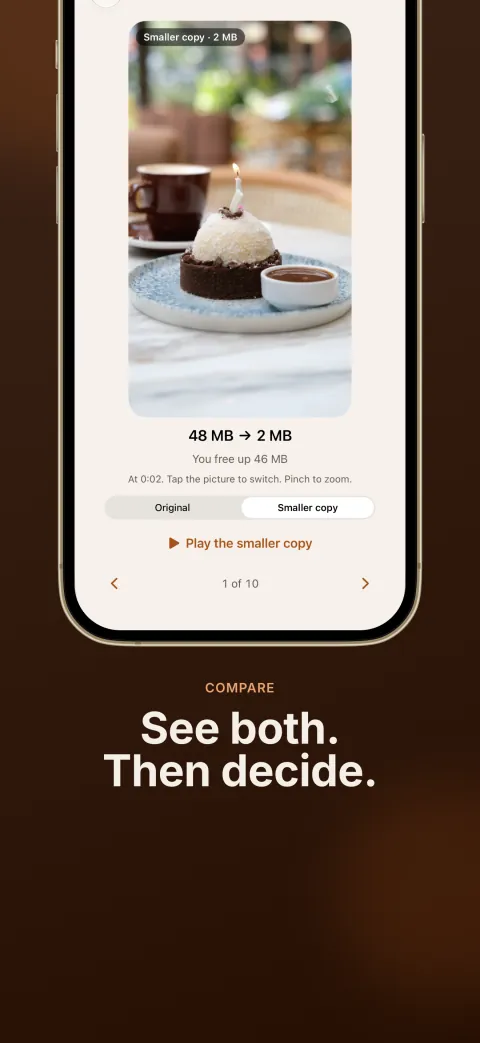
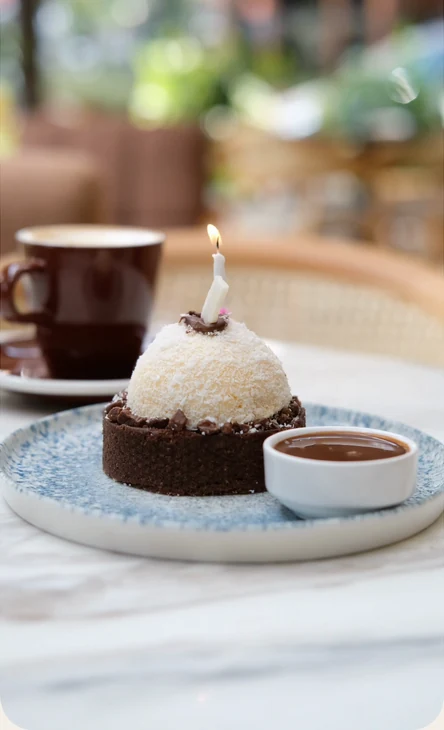
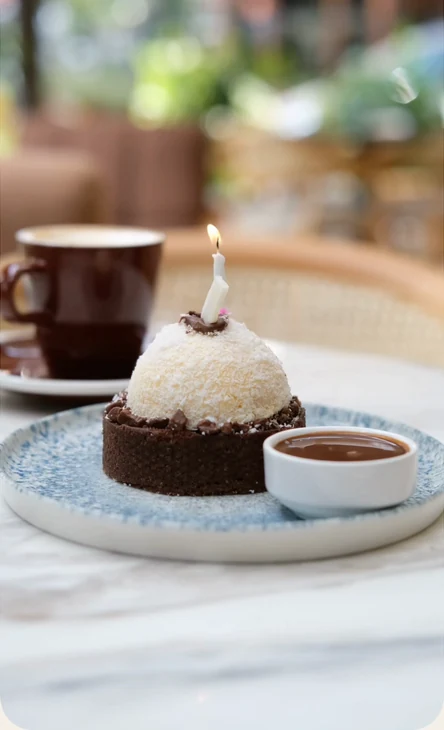
Before you start, tap Preview on a large video. Tiny Mighty makes 4 seconds of it smaller and shows you the same moment from the original and from the smaller copy. The preview is free.
Tiny Mighty checks each copy before it lets you delete the original. The copy has to be smaller, just as long as the original, and keep the sound and the color. A run deletes no original. You confirm the delete, and iOS asks you once.
Get Tiny Mighty on the App Store
To see what a smaller copy looks like before you buy, read Reduce video size on iPhone.
How to get the space back
A smaller copy frees no space while the original is still in your library. After you delete the original, iOS keeps it in Recently Deleted for 30 days, and it still uses your storage during that time.
To get the space back, open Photos → Collections → Utilities → Recently Deleted, then tap Select → Delete All. Delete All removes every item in that album. Look at the album before you empty it. iCloud can take a day to show the space.
Is the smaller copy as good as the original?
The smaller copy is not identical to the original. Its picture is smaller, and each second of video takes less storage. Compare the two on your own videos, then decide.