
How to free up iCloud storage without deleting photos
Your iCloud is full, and you don't want to delete your photos to make room. You don't have to. This guide frees up iCloud storage in other ways: smaller copies of your large videos, old backups, Messages and iCloud Drive.
To see what uses your iCloud, open Settings, tap your name, then tap iCloud. The bar at the top shows how much space you use. Tap Storage to see each item with its size.
First: Optimize iPhone Storage won't free up iCloud
It's easy to think that Optimize iPhone Storage frees up iCloud. It doesn't. It keeps smaller versions of your photos and videos on your iPhone, and iCloud still keeps the full-size originals. Your iPhone gets space back, and your iCloud stays the same size.
In iOS 27, the switch is in Settings → your name → iCloud → Photos → iPhone Storage. Leave it on if your iPhone is short of space. If your iPhone is full too, read iPhone storage full? How to free up space on iPhone.
To use less iCloud, your library itself has to get smaller. Large videos are the place to start.
1. Make smaller copies of your large videos
A few minutes of video can take more space than thousands of photos. Large videos fill your iCloud faster than anything else you keep.
Tiny Mighty finds the large videos in your library and makes a smaller copy of each one you choose. The copy keeps the date, the place and the albums of the original. You compare the two before you delete anything.
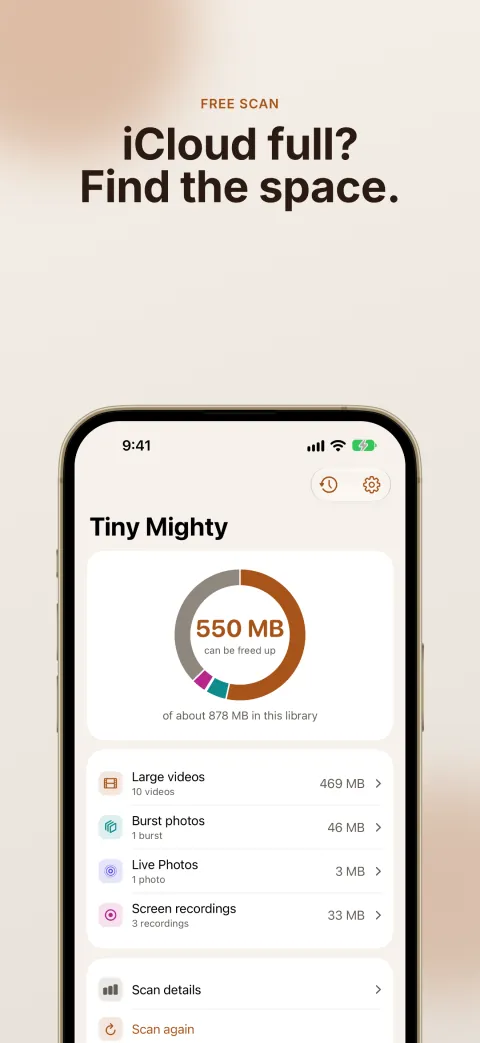
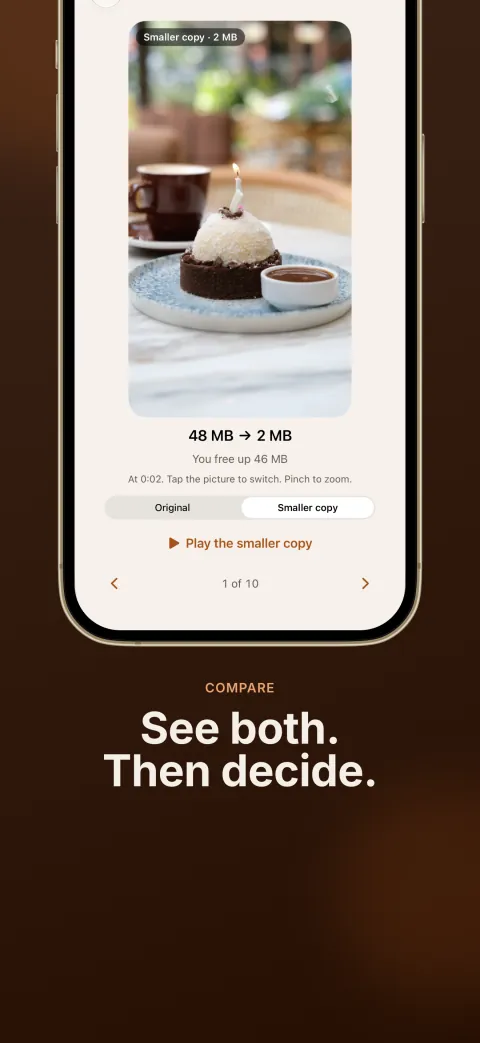
When you're happy with the copies, tap Delete on the home screen of Tiny Mighty. iOS asks you to confirm once. iOS then moves each original video to Recently Deleted in Photos, and the smaller copy takes its place in your library. This step works on your videos, and your photos stay as they are.
Every copy is checked before its original is deleted: it must be smaller, as long as the original, and keep the sound and the color.
The smaller copy is not identical to the original. Its picture is smaller, and each second of video takes less storage. Compare the two on your own videos, then decide.
Your storage goes up before it goes down. Tiny Mighty makes each copy before anything is deleted. Step 5 below says what happens to the originals in Recently Deleted.
If your iCloud is full, a new copy is only on your device at first. iCloud saves it when it has room.
The scan is free, and it shows how much space your library can give back. Making large videos smaller needs a purchase. You do not pay for the scan, burst photos, screen recordings or your first run of 3 videos.
Get Tiny Mighty on the App Store
To see a before and after, read Reduce video size on iPhone.
2. Delete the backups of old devices
iCloud keeps a backup of each iPhone and iPad that backs up to it. When a device stops backing up to iCloud, Apple keeps its backup for 180 days.
Open Settings, tap your name, tap iCloud, then tap Storage (on some versions, Manage Account Storage). Tap Backups. If you see an iPhone or iPad that you no longer use, tap it, then tap Turn Off and Delete from iCloud and confirm.
Don't delete the backup of the iPhone you use now. That also turns off iCloud Backup for it.
Instead, tap the backup of your current iPhone. It lists each app with the size of its backup. Turn off the apps that you don't need backed up, such as an app that keeps its data in its own cloud. This removes that app's data from your iCloud backup. Some apps are always backed up, and you can't turn them off.
3. Clear large attachments in Messages
With Messages in iCloud, the texts and attachments that you send and receive use your iCloud storage. The videos in your conversations can be large.
Open a conversation in Messages and tap the picture of the contact or group at the top. Tap Photos. To see only the videos, tap the Filter button, then tap Videos. Tap Edit, select the attachments you want to remove, then tap the Delete button and confirm.
Messages keeps what you delete in its own Recently Deleted for 30 days. To remove it now, go to the conversation list, tap the Filter button, then tap Recently Deleted. Select the conversations and delete them.
4. Clean up iCloud Drive
Open the Files app, tap Browse, then tap iCloud Drive under Locations. To find the largest files, tap the More button and sort by Size.
To delete files, tap the More button, tap Select, choose the files, then tap Delete. A file you delete here also goes from iCloud Drive on your other devices.
Files keeps deleted files in its own Recently Deleted for 30 days. You find it under Locations in Browse. A file you delete from there is gone for good.
5. Empty Recently Deleted
A photo or video that you delete is not gone yet. Photos keeps it in Recently Deleted for 30 days, then removes it from your iPhone, iCloud and your other devices. Until then, you can get it back. The originals from step 1 wait there too.
Apple says that items in Recently Deleted don't count toward your iCloud storage. They can still take up space on your iPhone.
To remove them now, open Photos, tap Collections, then tap Recently Deleted under Utilities. Tap View Album and unlock it with Face ID, Touch ID or your passcode. Tap Select, choose the items, then delete them.
The items in this album were deleted already, and this step removes them for good. You can't undo it, so look through the album first.
When to buy more storage
If your iCloud is still full after these steps, a larger iCloud+ plan is the simple answer. The free plan has 5 GB.
In iOS 27, open Settings, tap your name, tap iCloud, then tap Manage Plan under iCloud+ Features. If you don't have iCloud+ yet, tap Storage, then Get More Storage.
Make your large videos smaller and delete old backups first. Then you may be able to stay on the plan you have.
For more ways to clear iCloud, read How to free up iCloud storage.
These steps follow Apple's support pages for iOS 27: Manage your iCloud storage, Manage your photo and video storage, Delete messages and attachments, Delete files in the Files app, Delete photos and videos and Buy iCloud+.